• Skip to primary navigation
  • Skip to main content
  • Skip to primary sidebar
Map Happy logo
  • Travel
    • Adventure
    • Leisure
    • Business
      • Loyalty
    • Student
    • Ladies
  • Trip Planning
    • Documentation
      • Customs
      • Passport
      • Visa
    • Reference Charts
    • Itinerary
    • Packing
    • Money
      • Budget
      • Luxury
      • Plastic
    • Technology
      • Photography
      • Connectivity
    • Language
  • Hacks
  • Transit
    • Flights
      • Airlines
      • Security
      • Airports
      • Lounges
    • Lodging
      • Hostels
      • Hotels
      • Vacation Rentals
        • Airbnb
    • Sea
      • Cruises
    • Ground
      • Bus
      • Cars
        • Taxis
          • Lyft
          • Uber
      • Public Transport
      • Trains
  • Expat
  • Features
    • Countries
      • Africa
      • Antarctica
      • Asia
      • Europe
      • North America
      • South America
      • Oceania
    • Guides
    • Culture & Science
    • Interviews
    • Opinion
  • Gear
    • Bags
  • Reviews
  • Tools
menu icon
go to homepage
  • Travel
    • Adventure
    • Leisure
    • Business
      • Loyalty
    • Student
    • Ladies
  • Trip Planning
    • Documentation
      • Customs
      • Passport
      • Visa
    • Reference Charts
    • Itinerary
    • Packing
    • Money
      • Budget
      • Luxury
      • Plastic
    • Technology
      • Photography
      • Connectivity
    • Language
  • Hacks
  • Transit
    • Flights
      • Airlines
      • Security
      • Airports
      • Lounges
    • Lodging
      • Hostels
      • Hotels
      • Vacation Rentals
        • Airbnb
    • Sea
      • Cruises
    • Ground
      • Bus
      • Cars
        • Taxis
          • Lyft
          • Uber
      • Public Transport
      • Trains
  • Expat
  • Features
    • Countries
      • Africa
      • Antarctica
      • Asia
      • Europe
      • North America
      • South America
      • Oceania
    • Guides
    • Culture & Science
    • Interviews
    • Opinion
  • Gear
    • Bags
  • Reviews
  • Tools
    • Facebook
    • Instagram
    • Pinterest
  • subscribe
    search icon
    Homepage link
    • Travel
      • Adventure
      • Leisure
      • Business
        • Loyalty
      • Student
      • Ladies
    • Trip Planning
      • Documentation
        • Customs
        • Passport
        • Visa
      • Reference Charts
      • Itinerary
      • Packing
      • Money
        • Budget
        • Luxury
        • Plastic
      • Technology
        • Photography
        • Connectivity
      • Language
    • Hacks
    • Transit
      • Flights
        • Airlines
        • Security
        • Airports
        • Lounges
      • Lodging
        • Hostels
        • Hotels
        • Vacation Rentals
          • Airbnb
      • Sea
        • Cruises
      • Ground
        • Bus
        • Cars
          • Taxis
            • Lyft
            • Uber
        • Public Transport
        • Trains
    • Expat
    • Features
      • Countries
        • Africa
        • Antarctica
        • Asia
        • Europe
        • North America
        • South America
        • Oceania
      • Guides
      • Culture & Science
      • Interviews
      • Opinion
    • Gear
      • Bags
    • Reviews
    • Tools
    • Facebook
    • Instagram
    • Pinterest
  • ×

    How To Manually Update an Amazon Kindle

    Published/Updated: Oct 17, 2025 · Erica Ho · 1 minute read

    home thods / flickr

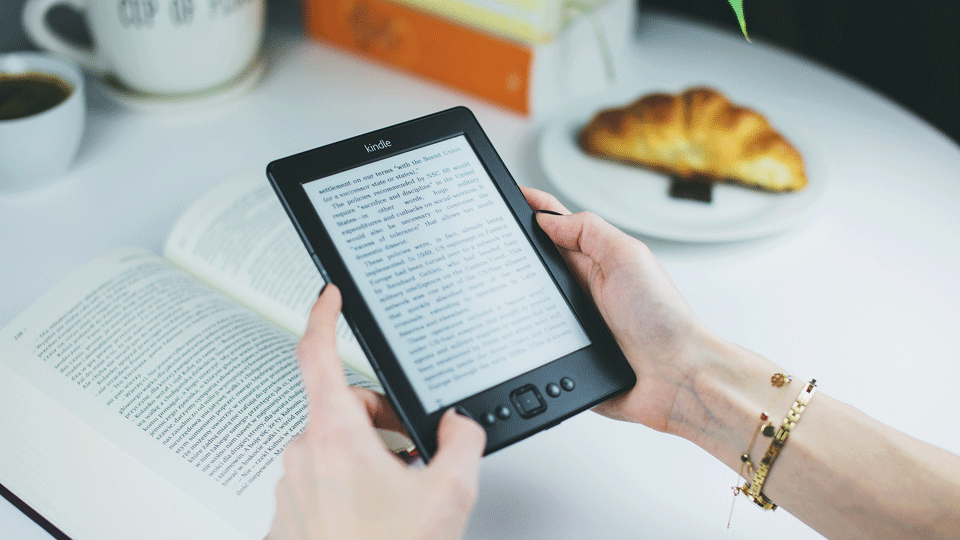
    My first Kindle lasted six years! and I don't think I ever realized it could update. Here's a quick guide to ensure the latest Amazon Kindle firmware is installed.

    Maybe I always expected the device would automatically update itself, or the inherent reading experience was already so satisfactory that it never even crossed my mind.

    In most cases, most updates should be synced, downloaded and updated wirelessly. But there have been instances where Kindles don't seem to register any new updates, and a manual update must be performed.

    Besides, its not like this is a supercomputer that's like super smart. But IT IS SO GOOD for reading and passing the time on a plane.

    Identifying the Kindle and firmware version.

    There are a bajillion Amazon Kindle makes and models out there, and they all have different firmware versions that they can support, or can update to. This list displays all the model numbers, which can be found at the back of the device (the serial number won't help much).

    From there on out, Amazon has each model's firmware update depending on the make. It turns out I've got the Kindle Paperwhite, 7th generation. According to Amazon, the latest version is 5.9.7.

    To find out what version the Kindle is, quickly navigate from Settings Device Info.

    For instance, a quick reveal informs us that our Kindle is running 5.8.11, which isn't the latest update by far.

    From there on out, there are two methods for updating the Kindle, depending on whether there's a wireless connection available.

    Upgrading an Amazon Kindle wirelessly.

    To perform the wireless update, simply sync up to a network and navigate to the following settings in order to enable.
    In theory, the navigation looks like this:

    Settings Device Options Update Your Kindle

    If Update Your Kindle is greyed out, it indicates the Kindle is running the latest version or it doesn't register the update. In our case, we have to move to a manual upgrade.

    Upgrading an Amazon Kindle manually through USB.

    From the firmware page, there is a direct download to the latest .bin file, which will allow the user to perform the upgrade via USB. The process isn't that much more complicated.

    Download the file, and once the file is downloaded, connect the Kindle to a computer via USB. Transfer the file onto the Kindle, but don't put it in a folder. It should be in the top root folder of the device. (Downloading it directly there will not work.)

    • Save

    The file should be in the root folder.

    Disconnect the device, and go through the same settings in the wireless options to start the process.

    Meaning, go through the above steps.

    Settings Device Options Update Your Kindle

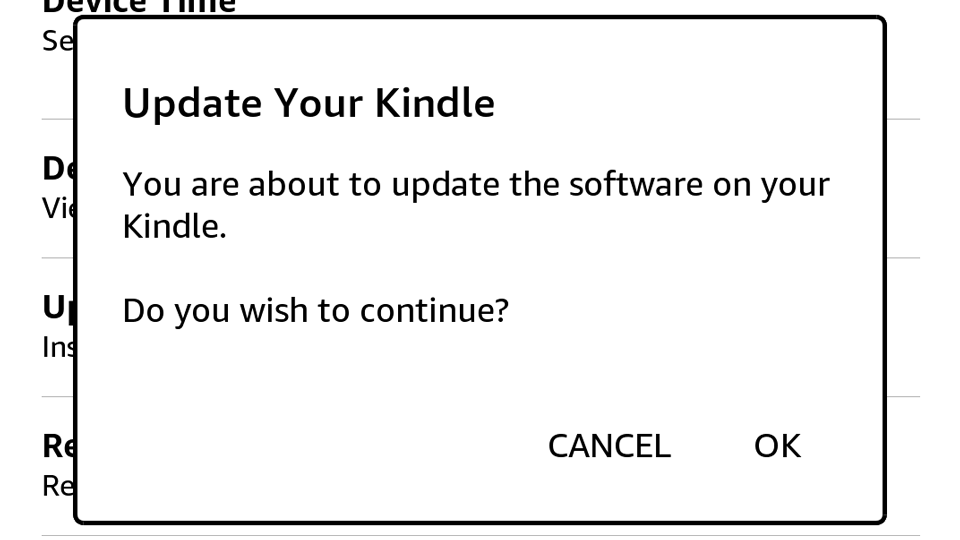
    Update Your Kindle should no longer be greyed out. Go ahead and select it, and the Kindle will update. Voilà !
    • Save

    The magic screen.

    • Save

    Popular Posts

    The Best One-Way Car Rental Discount Codes

    Can Someone Else Deposit a Check for Me While I'm Out of Town?

    Primary Sidebar

    TL;DR

    1. Find out the Kindle make (using the model, not serial number).
    2. Select the Kindle on Amazon's page to see what version it should be running.
    3. Check the device version.
    4. Perform a wireless (or wired) update.

    👉 Add Map Happy to Google Preferred Sources

    Some posts contain affiliate links.
    These links support our work.
    This is our official policy on generative AI use.

    Erica Ho

    Erica Ho

    Erica Ho is a former reporter for TIME in Hong Kong and former geek at Gizmodo and Lifehacker. Her work has appeared in CNN, Yahoo!, MSN, Mashable, Travel + Leisure, Conde Nast Traveler and Quartz to name a few places.

    The good ol' days! I remember creeping as a former The good ol' days! I remember creeping as a former expat, and honestly, stumbling into the most random places as a traveler  😅 

It is not every day you stumble into someone else's living room for a private jazz concert, and if you happen to be down in Mexico City, check out @laa_esquina (send a DM!). 

Twice a month. It's the best kind of Saturday night, even if I can't stay up that late anymore!
    Follow on Instagram

    Footer

    ↑ back to top

    About

    • Privacy
    • Editorial Guidelines
    • Terms of Service
    • AI Disclosure

    Follow

    • email updates

    Contact

    FAQ


    Copyright © 2024 Map Happy

    • Facebook
    • Pinterest
    • Twitter
    • Reddit
    • WhatsApp
    • Email
    • Print