
• Skip to primary navigation
  • Skip to main content
  • Skip to primary sidebar
Map Happy logo
  • Travel
    • Adventure
    • Leisure
    • Business
      • Loyalty
    • Student
    • Ladies
  • Trip Planning
    • Documentation
      • Customs
      • Passport
      • Visa
    • Reference Charts
    • Itinerary
    • Packing
    • Money
      • Budget
      • Luxury
      • Plastic
    • Technology
      • Photography
      • Connectivity
    • Language
  • Hacks
  • Transit
    • Flights
      • Airlines
      • Security
      • Airports
      • Lounges
    • Lodging
      • Hostels
      • Hotels
      • Vacation Rentals
        • Airbnb
    • Sea
      • Cruises
    • Ground
      • Bus
      • Cars
        • Taxis
          • Lyft
          • Uber
      • Public Transport
      • Trains
  • Expat
  • Features
    • Countries
      • Africa
      • Antarctica
      • Asia
      • Europe
      • North America
      • South America
      • Oceania
    • Guides
    • Culture & Science
    • Interviews
    • Opinion
  • Gear
    • Bags
  • Reviews
  • Tools
menu icon
go to homepage
  • Travel
    • Adventure
    • Leisure
    • Business
      • Loyalty
    • Student
    • Ladies
  • Trip Planning
    • Documentation
      • Customs
      • Passport
      • Visa
    • Reference Charts
    • Itinerary
    • Packing
    • Money
      • Budget
      • Luxury
      • Plastic
    • Technology
      • Photography
      • Connectivity
    • Language
  • Hacks
  • Transit
    • Flights
      • Airlines
      • Security
      • Airports
      • Lounges
    • Lodging
      • Hostels
      • Hotels
      • Vacation Rentals
        • Airbnb
    • Sea
      • Cruises
    • Ground
      • Bus
      • Cars
        • Taxis
          • Lyft
          • Uber
      • Public Transport
      • Trains
  • Expat
  • Features
    • Countries
      • Africa
      • Antarctica
      • Asia
      • Europe
      • North America
      • South America
      • Oceania
    • Guides
    • Culture & Science
    • Interviews
    • Opinion
  • Gear
    • Bags
  • Reviews
  • Tools
    • Facebook
    • Instagram
    • Pinterest
  • subscribe
    search icon
    Homepage link
    • Travel
      • Adventure
      • Leisure
      • Business
        • Loyalty
      • Student
      • Ladies
    • Trip Planning
      • Documentation
        • Customs
        • Passport
        • Visa
      • Reference Charts
      • Itinerary
      • Packing
      • Money
        • Budget
        • Luxury
        • Plastic
      • Technology
        • Photography
        • Connectivity
      • Language
    • Hacks
    • Transit
      • Flights
        • Airlines
        • Security
        • Airports
        • Lounges
      • Lodging
        • Hostels
        • Hotels
        • Vacation Rentals
          • Airbnb
      • Sea
        • Cruises
      • Ground
        • Bus
        • Cars
          • Taxis
            • Lyft
            • Uber
        • Public Transport
        • Trains
    • Expat
    • Features
      • Countries
        • Africa
        • Antarctica
        • Asia
        • Europe
        • North America
        • South America
        • Oceania
      • Guides
      • Culture & Science
      • Interviews
      • Opinion
    • Gear
      • Bags
    • Reviews
    • Tools
    • Facebook
    • Instagram
    • Pinterest
  • ×

    How To Create Multiple Events On Google Calendar (with AI)

    Published/Updated: Jul 1, 2025 · Erica Ho · 2 minute read

    Before any White Lotus shenanigans can happen, we need to establish a group itinerary before we can drink piña coladas together.

    As much as I enjoy planning a trip, there's nothing I enjoy less than plugging 27 different events into a calendar. Here's how to do it the easy way-with the help of AI-and without painstakingly plugging in each activity one by one.

    Besides patting yourself on the back for the de facto group leader (aka a Samuel), this is also perfect for wedding destination itineraries, where there may be multiple events in several different locations.

    The best part is that it's very easy to create a shared group calendar with this method.

    Picking the right AI engine is half of the battle

    Surprisingly, Google Gemini failed in at least half of our prompt queries.

    The main reason why we attempted Google Gemini first is because it has the ability to create events directly in Google Calendar, saving a few crucial-and manual-steps.

    In our testing, though, we found it not to be as fully developed as some of the other chat agents we usually use, like ChatGPT.

    Though it did get some things right, but by far, I had to feed events in one by one with a 50% success rate.

    This got frustrating in the end, so we ended up defaulting back to ChatGPT, which has the ability to parse through data fairly well even when the text is not properly formatted. This saves sooo much of time.

    Here are the exact AI prompts to create a Google Calendar

    After building several Google Calendar events through ChatGPT, we've got it down to a science.

    Don't worry too much about formatting the itinerary text properly. ChatGPT can parse through that information and format it. (Though we'd also recommend asking ChatGPT to format it in advance to check for accuracy.  If so, use this prompt: Can you format this agenda to put in Google Calendar: [text])

    In our example, we used a an industry conference agenda, though any agendas will work.

    Use these prompts:

    Can you create Google Calendar invites for the following text and make sure it is in [location] timezone: [text]

    Here is a sample of what ChatGPT prompted back to us:

    Here's your Google Calendar-friendly version of the schedule, broken into individual event entries. You can copy-paste each into Google Calendar manually, or use this as a reference to create events quickly:


    📍April 30, 2025 - Cardozo Hotel, Miami Beach, FL

    Event 1
    Title: Townhall - AIMM's Inclusive Growth Incubator
    Time: 4:00 PM - 5:30 PM (ET)
    Location: Cardozo Hotel, 1300 Ocean Drive, Miami Beach, FL 33139
    Description: A collaborative townhall hosted by AIMM.

    Event 2
    Title: Belonging Lounge Reception
    Time: 5:30 PM - 7:00 PM (ET)
    Location: Cardozo Hotel, 1300 Ocean Drive, Miami Beach, FL 33139
    Description: Networking reception to connect and celebrate inclusive growth.


    📍May 1, 2025 - Cardozo Hotel, Miami Beach, FL

    Event 3
    Title: Networking Breakfast - Sponsored by SBS and LaMusica
    Time: 8:00 AM - 9:00 AM (EST)
    Location: Cardozo Hotel
    Description: Start the day with networking and breakfast.

    Event 4
    Title: Welcome Remarks
    Time: 9:00 AM - 9:20 AM (EST)
    Location: Cardozo Hotel
    Description: Speakers: Gilbert Davila and Bob Liodice (virtual)

    Event 5
    Title: Case Studies in Inclusive Growth
    Time: 9:20 AM - 9:55 AM (EST)
    Location: Cardozo Hotel
    Description: Real-world brand case studies on inclusive growth.

    [more events redacted, because you get the point!]


    Would you like a downloadable .ics file or a Google Calendar link with all of this preloaded?

    Obviously, this is the ideal response. ChatGPT has asked if we want an ICS (Google Calendar) file, which is exactly what we want.

    Here was our next prompt: Can you turn this into an ICS file?

    At this point, we said "Yes," and it gave me a file that I downloaded. In this case, skip straight to importing.

    However, if for some reason, ChatGPT can't create the ICS file, it sure as hell can create the contents of the file.

    If you're not getting a file, I would prompt it the following:

    Can you get the code for the ics file?

    It will then spit out something that look like this.

    • Save

    How to create the Google Calendar file

    The next thing you want to do is to open up a text file editor, and paste the entire code into it. Go ahead and save it as "CALENDAR.ICS".
    • Save

    The quotes are important, since it essentially tells the computer what TYPE of file it is, and allows it to change the file extension. This works for both Mac and Windows.

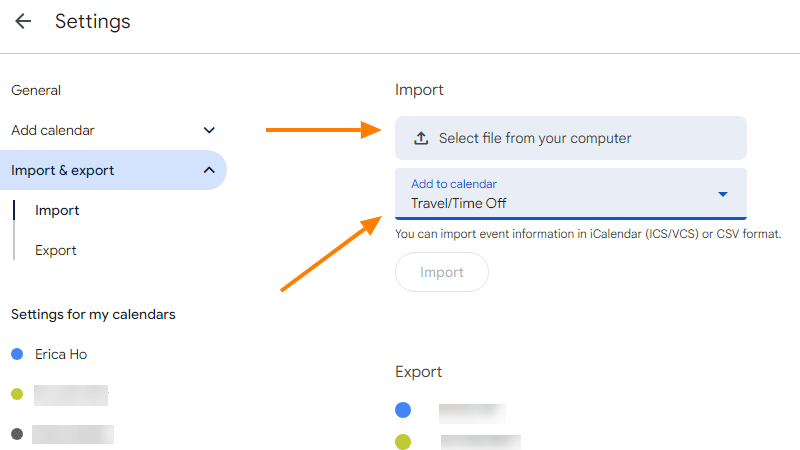
    Load the file into Google Calendar settings or calendar app of choice.

    Make sure you are on the Import tab, and then load the ICS file.

    Select the calendar you want to load it into, and that's it! You're done!
    • Save

    Popular Posts

    How To Sleep On an Overnight Amtrak Train in Coach

    The Difference Between Polycarbonate and Aluminum Suitcases

    Primary Sidebar

    TL;DR

    Here are the AI prompts to use (replace the bolded words with yours):

    1. Can you format this agenda to put in Google Calendar: [text]?
    2. Can you create Google Calendar invites based on that and make sure it is in [location] timezone?
    3. Can you turn this into an ICS file? OR Can you get the code for the ICS file?

    👉 Add Map Happy to Google Preferred Sources

    Some posts contain affiliate links.
    These links support our work.
    This is our official policy on generative AI use.

    Erica Ho

    Erica Ho

    Erica Ho is a former reporter for TIME in Hong Kong and former geek at Gizmodo and Lifehacker. Her work has appeared in CNN, Yahoo!, MSN, Mashable, Travel + Leisure, Conde Nast Traveler and Quartz to name a few places.

    The good ol' days! I remember creeping as a former The good ol' days! I remember creeping as a former expat, and honestly, stumbling into the most random places as a traveler  😅 

It is not every day you stumble into someone else's living room for a private jazz concert, and if you happen to be down in Mexico City, check out @laa_esquina (send a DM!). 

Twice a month. It's the best kind of Saturday night, even if I can't stay up that late anymore!
    Follow on Instagram

    Footer

    ↑ back to top

    About

    • Privacy
    • Editorial Guidelines
    • Terms of Service
    • AI Disclosure

    Follow

    • email updates

    Contact

    FAQ


    Copyright © 2024 Map Happy

    • Facebook
    • Pinterest
    • Twitter
    • Reddit
    • WhatsApp
    • Email
    • Print